Use the Design page to set placement, the Update consent icon position, toolbar visibility, duration control, animation, colors, and font sizes. These options shape the banner’s look and movement without touching code.
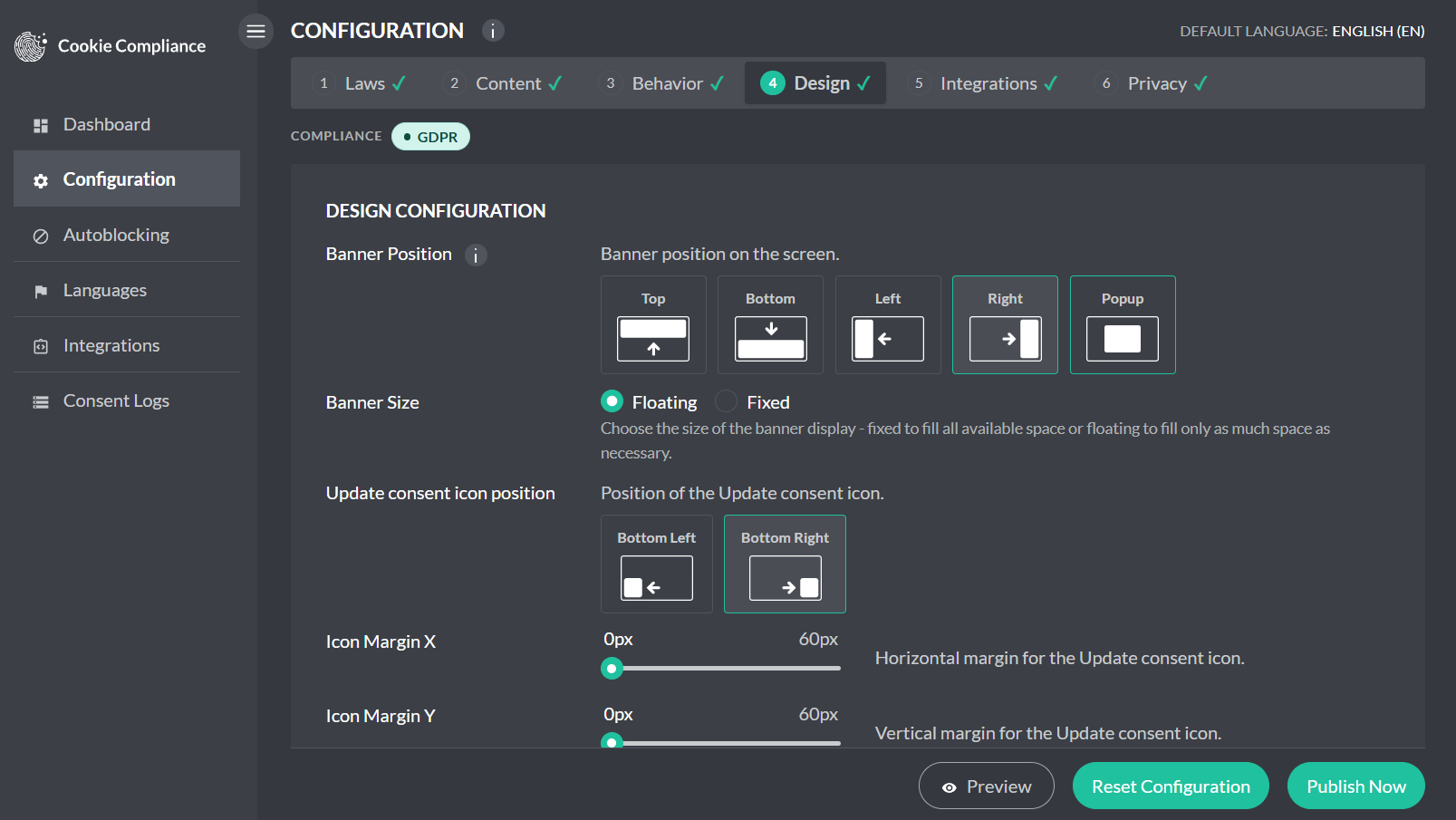
Position (layout on the page)
Choose where the banner appears: Top, Bottom, Left or Right (side tray), or Popup (modal centered on the screen). Separately, set Banner Size: Floating (sized to its content, the default) or Fixed (full width for Top and Bottom, full height for Left and Right). Pick a position that doesn’t collide with your site header or chat widgets.
Update consent icon position
Place the fingerprint Update consent icon at Bottom-left or Bottom-right. If you prefer your own control, set the Update consent method to Manual on the Behavior page and place the link code shown there.
Toolbar (brand + quick actions)
Toggle Show Toolbar. On the New banner this shows or hides the site name at the top; the close and download controls stay either way. In Compact style the site name is never shown, so the setting changes nothing there. On the Classic banner the toolbar shows the site identity and quick actions like expand and proof-of-consent access.
Duration selector (visitor-controlled)
Toggle Show Duration to let visitors choose how long their consent should last from the durations you chose on the Behavior page (Consent expiry). If you remove it, the banner still applies your default duration.
Animation (how the banner arrives)
Choose Fade, Slide or None and set the speed (speed has no effect on None). Smooth motion draws attention without feeling intrusive; match speed to your site’s UI rhythm.
Colors (brand match and clarity)
Set the palette so the banner fits your brand and remains readable:
- Primary Color – buttons and active elements
- Border Color – outlines and inactive elements
- Level 1 / 2 / 3 Colors – bullets for Private, Balanced, Personalized
- Background – banner background
- Headline – title text
- Text – body copy
- Button Text – button labels
Aim for strong contrast for accessibility and legibility.
Font sizes (hierarchy and readability)
Adjust Headline and Text sizes so the title leads and copy stays readable on mobile. Keep line lengths comfortable in side trays and popups.
Your own CSS (New engine)
For anything these options don’t cover, add CSS to your site’s own stylesheet (on WordPress: Appearance → Customize → Additional CSS), never to the install snippet. This works on any plan. The New engine banner keeps its own look: ordinary theme rules for headings, paragraphs, lists, buttons and checkboxes no longer change its text, buttons or category switches, and the same holds for the Global Privacy Control notice and the notice over a blocked video or map. It still uses your site’s body font. To restyle it on purpose, write each rule as body #hu .hu-… (for example body #hu .hu-heading { text-align: left; }) or add !important. A plain #hu .hu-… rule in your page’s <head> can lose to the banner’s own stylesheet, which loads later. A theme rule marked !important still reaches the banner. The Classic engine banner is unchanged and its markup differs, so check each rule against the engine your site uses.
Banner engine and banner style
The Banner engine dropdown in the Configuration header, at the top of every Configuration page, picks which build of the banner your site loads: Classic (v1) or New (v2). Both record consent and block trackers before consent. Sites created from the dashboard, an AI assistant, or the WordPress plugin (3.1.13 or later) start on New; existing sites keep their engine, and you can switch back at any time.
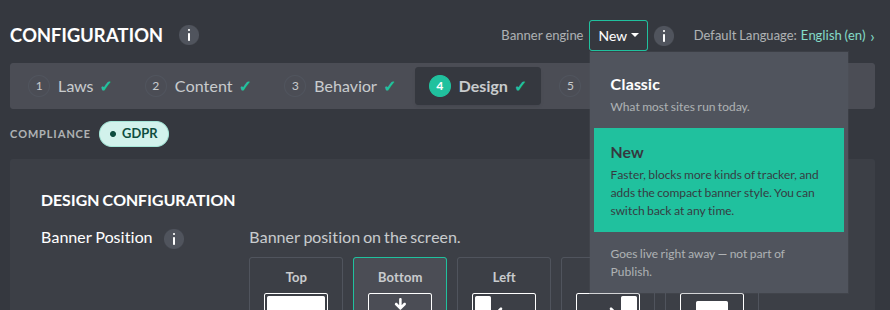
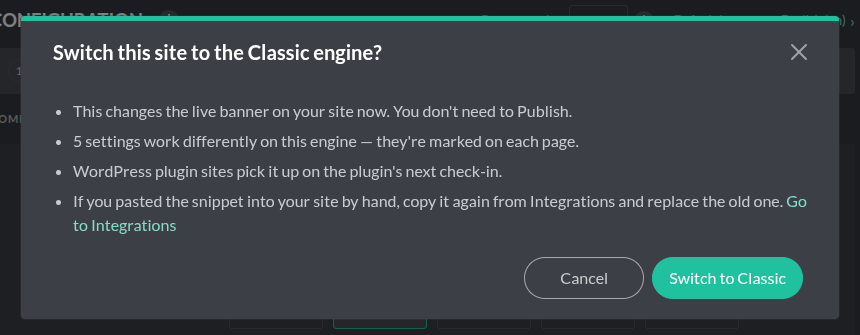
- Switching asks you to confirm and goes live right away. You are asked “Switch this site to the New engine?” before anything changes, and it is not part of the page’s Publish Now.
- WordPress plugin sites pick up the change on the plugin’s next check-in. If the site’s plugin is older than 3.1.11, or its version cannot be read, the switch to New is refused until the plugin is updated. From plugin 3.1.13, WordPress tells you once when the engine changes and offers to purge your page cache so visitors get the new banner.
- Snippet added by hand? The script address changes with the engine (the New engine’s address contains
/v2/). Copy the updated snippet from Integrations and replace the old one, including when you switch back. - Banner style (New engine only, set on Configuration → Design): Standard shows the site’s domain, the heading, the message and every consent level. Compact puts the heading in the top row and offers Private and Personalized on the banner; every category is still under Customize. With the banner fixed to the top or bottom on a wide screen, Compact is a single row. Banner style goes live when you publish, like the rest of the page. On WordPress (plugin 3.1.13 or later) you can also pick Standard or Compact in the plugin; setup starts with this choice.