Use Languages to localize every visitor-facing string in the banner: title, description, buttons, Access Level labels, Purpose Category names/descriptions, policy link labels, and (if shown) consent-duration labels.
How to Add a New Language
- Open Languages in the Cookie Compliance dashboard.
- Click + Add Language and pick the language.
- Review the fields for that language and complete any missing strings. Popular languages may come pre-filled; others require you to enter text for every key (banner title/description, buttons, Access Levels, Purpose names/descriptions, policy link labels and any consent-duration labels). On the Classic engine, a language with no Privacy Policy or Do Not Sell URL of its own uses the default language’s link. Set per-language URLs only where your policy pages differ by language.
- Click Save & Publish on the Languages page to push the translations live.
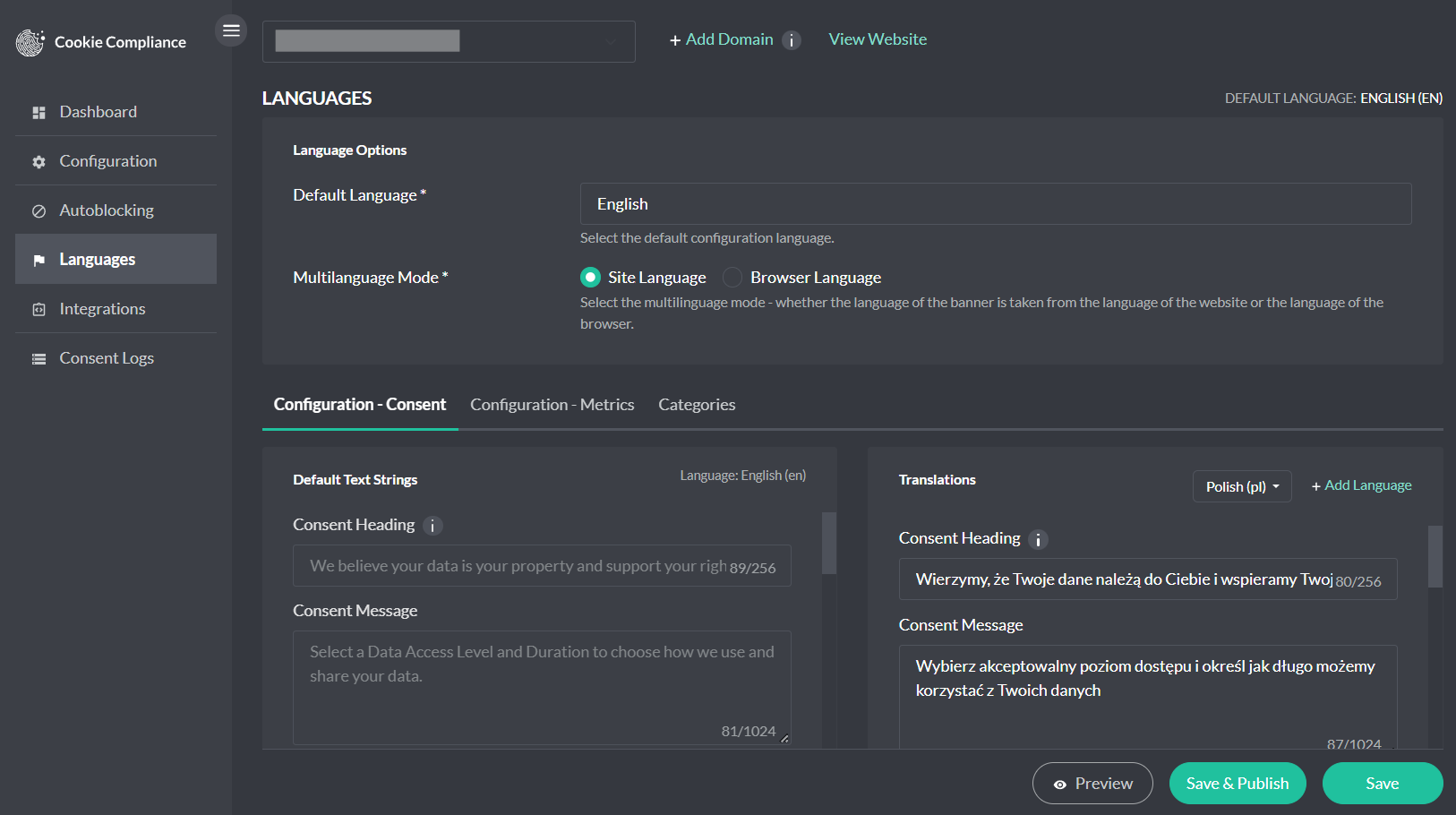
Cookie Compliance provides default translations for the most popular languages, and will automatically populate the text strings translations for these 19 languages besides English:
- French (fr)
- Spanish (es)
- German (de)
- Italian (it)
- Greek (el)
- Dutch (nl)
- Portuguese (pt)
- Polish (pl)
- Swedish (sv)
- Croatian (hr)
- Czech (cs)
- Estonian (et)
- Finnish (fi)
- Slovak (sk)
- Romanian (ro)
- Norwegian (no)
- Lithuanian (lt)
- Latvian (lv)
- Hungarian (hu)
Multilanguage mode (how selection works)
Cookie Compliance supports multiple languages out of the box. The Multilanguage Mode option on the Languages page simply tells the banner how to pick the active language at runtime:
- Site Language (default): use the page’s language.
- Browser Language: use the visitor’s primary browser language if you added that language and strings in the app.
This setting affects language selection only. It doesn’t change Geolocation, Autoblocking, or consent behavior.
Manual implementation
In the application, open Integrations page and copy the Manual implementation snippet – it includes currentLanguage parameter for the language you want to set:
<!-- Cookie Compliance: inline init -->
<script>
  var huOptions = {
    currentLanguage: 'de' // set to the language you want this page to use
    // ...other generated options
  };
</script>

<!-- Cookie Compliance: loader. Copy the exact URL from your Integrations snippet; it may contain /v2/ -->
<script src="https://cdn.hu-manity.co/hu-banner.min.js"></script>
WordPress: automatic language detection
The Cookie Compliance for WordPress plugin reads the page/site locale and selects the matching translation automatically. It works with popular multilingual plugins (e.g., WPML, Polylang) that set the locale per URL. To localize:
- Add your domain languages and strings in the application.
- Publish changes in the app, then click Pull latest settings in the plugin’s Domain Info card (the classic settings screen has the same button) to refresh.
- If your policy URLs differ by language, set the per-language links in the app.
Language codes
Cookie Compliance mostly uses two-letter ISO 639-1 language codes, such as en, de, fr, pl. A few languages use a three-letter, regional or older code, so pick the language from the list in the dashboard rather than typing a code.
On WordPress, multilingual plugins set the page locale; the plugin maps that locale to the matching language code to pick the right translation.