Privacy Paper is the educational section inside the banner. It explains your data access levels, the kinds of data involved, why sharing may help, and what rights people have. Visitors can read it next to the consent choices without leaving the page.
Classic engine only. The New engine does not show the Privacy Paper, so for a New-engine site Configuration → Privacy offers only Privacy Contact. Your Privacy Paper text stays saved and applies again if you switch back to Classic.
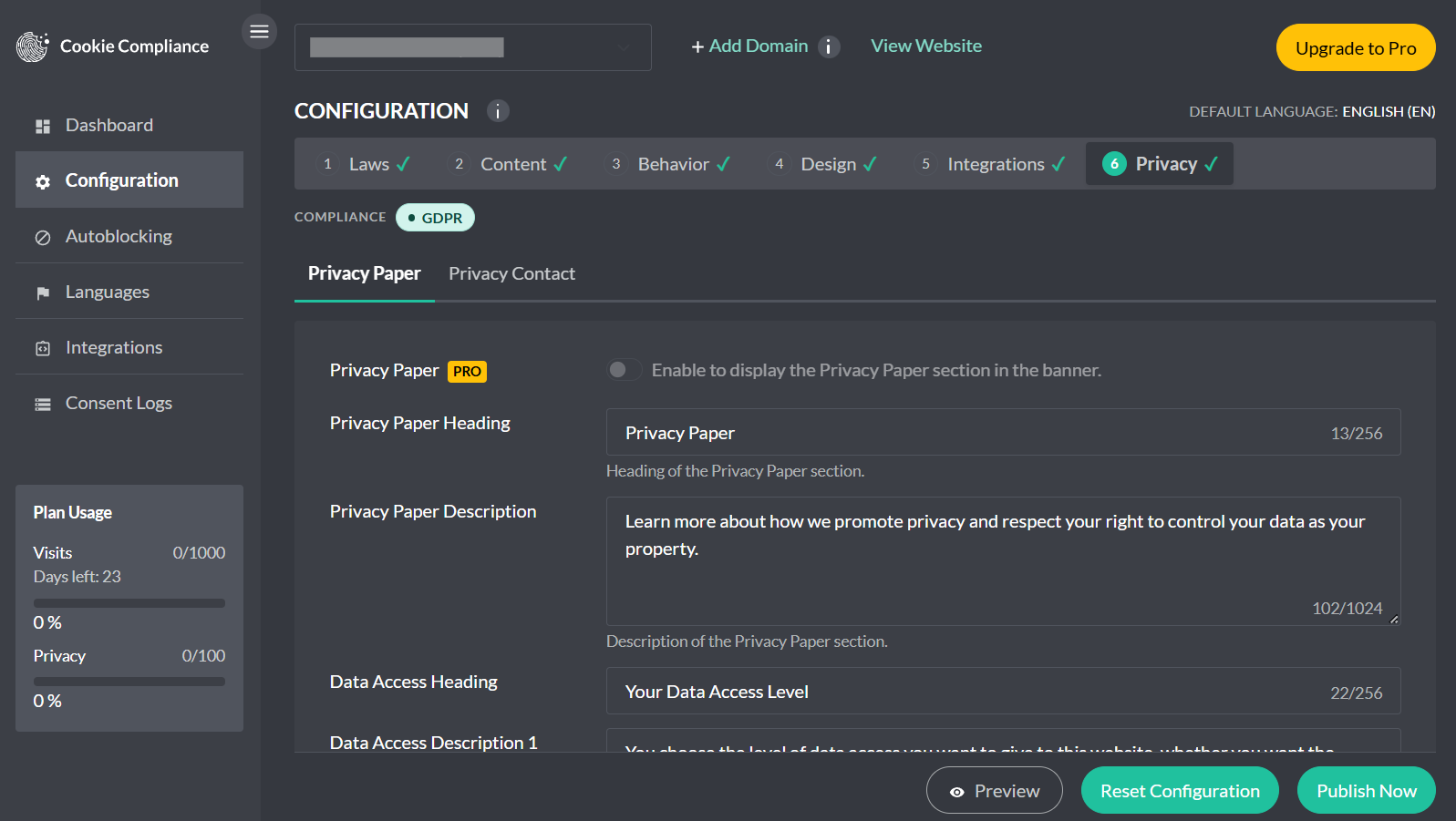
Where you edit it
Open Configuration → Privacy in the app and go to the Privacy Paper section. You control the copy for each block of the Privacy Paper; the banner renders those texts exactly as you publish them.
What visitors see in the banner
The Privacy Paper shows four blocks by default. You can rename headings and rewrite descriptions, but the structure stays consistent so people can scan it quickly:
- Data Access – a plain-language explainer of your three data access levels.
- Data Types – what “Anonymous,” “Pseudonymous,” and “Personal” mean on your site.
- Benefits of Data Sharing – how consent can improve the experience or outcomes.
- User Rights – a short summary of rights with two supporting quotes and their sources. You can reword them; clearing a quote or source brings back the default text.
Fields you can customize (labels and texts)
In the Privacy Paper section of Configuration → Privacy you can edit these items:
- Privacy Paper Heading and Description
- Data Access Heading and Description
- Data Access Level 1 / 2 / 3 – a one-line description of each level (level names are edited on Configuration → Content)
- Data Types Heading and Description
- Data Types Anonymous / Pseudonymous / Personal – definitions you want visitors to see
- Benefits Heading and Description
- User Rights Heading, two Descriptions, and two Quotes with their Quote Sources
How it connects to consent choices
The Data Access block should mirror your live choices in the banner: Private, Balanced, and Personalized. Keep the names and short descriptions consistent with the level names and descriptions on Configuration → Content so the message and the explainer tell the same story. If you adjust level names or descriptions, update both places.
How it relates to purposes and services
Use Privacy Paper to explain why you process data. The actual enforcement still comes from your purpose mapping and autoblocking rules, and the banner will only run services that match the visitor’s saved choice. Keep the wording aligned with the purpose categories you expose in Preferences.